Page: Run
The Run page in the XO-VAC+ User Interface software should be used to run recipes on a connected XO-VAC+ device, and to monitor live run data.
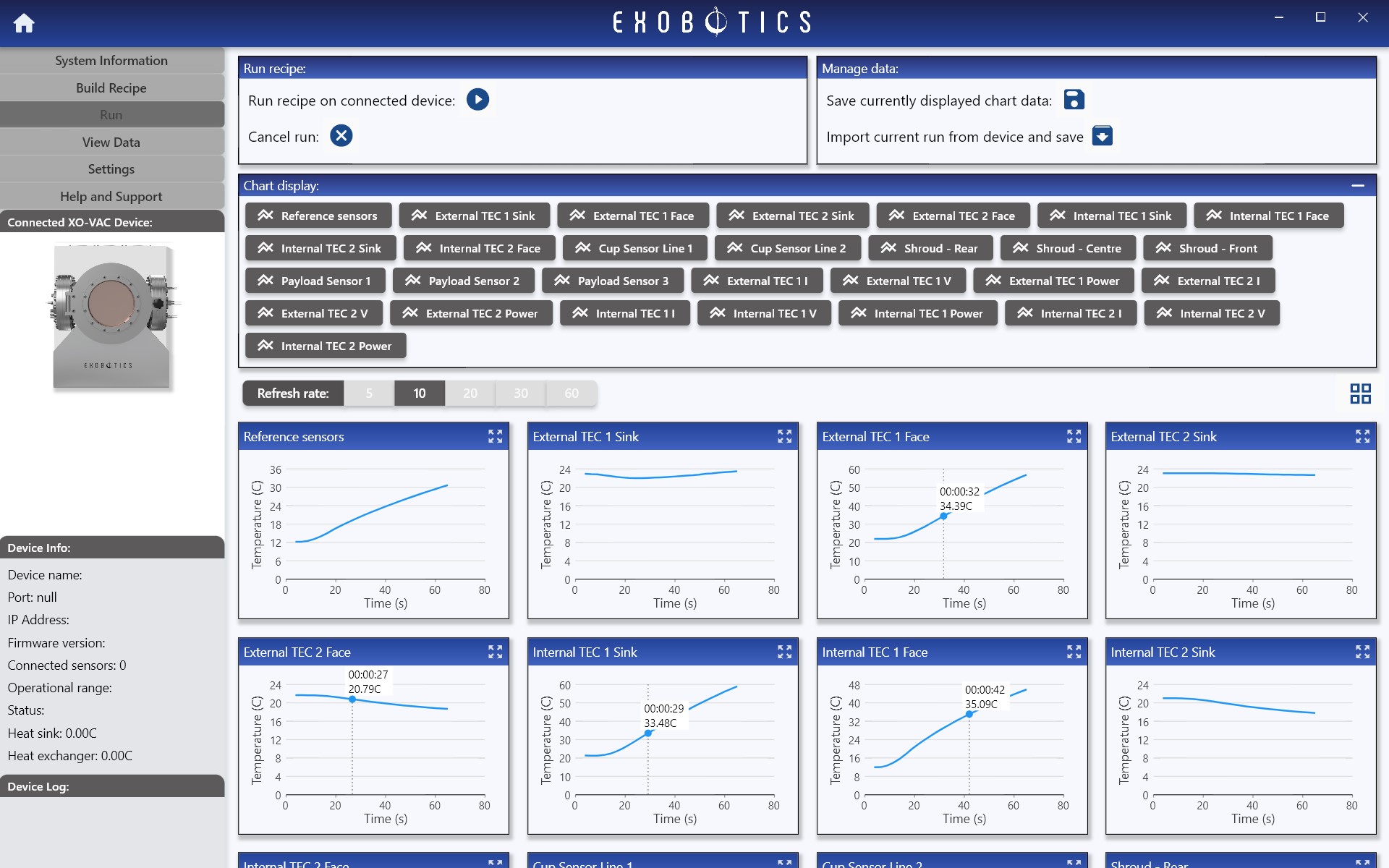
Run recipe
To run a recipe on the connected device, a recipe must first be loaded to that device (see Build Recipe page).
On clicking run, the user will be presented with a dialog to select the reference sensor/s for the run. The reference sensor is the sensor against which the XO-VAC+ run algorithm compares the actual and target temperatures. In other words, if the target temperature for a step is -15C, the system will run until the temperature has stabilised at -15C at the selected reference sensor.
Where more than one sensor is selected as reference sensor, the system will run taking the mean value across the selected sensors. Heat exchanger sensors are those located at the internal face of the heat exchanger at the back of the chamber. These sensors may be selected as reference, but not in conjunction with chamber sensors. Note that temperatures will be reached much more quickly at the heat exchanger sensors, and may differ from the chamber temperatures by several degrees.
The run panel also provides the user the option to Set sensor temperature cut-off limits. This allows the user to set cut-off limits on individual sensors (which may vary from the reference sensors). If these limits are exceeded during a run, the device will cancel the run immediately. Note that although the run will be cancelled immediately, these limits may not be absolute; for example, if a temperature limit is exceeded at a sensor, the temperature at that sensor may continue to rise beyond the limit for a short period of time due to re-equilibration of thermal gradients in the chamber.
For more information see here.
Sensor chart display
Use this panel to toggle display of different sensor live data charts.
Manage data
The software gives the option to save both the data displayed in the charts, and to import full run data from the connected device. The data in the charts and the data stored on the device may differ, for example if the software was closed and re-opened half way through a run.
It is only possible to import run data from a device when a run has completed, and at the completion of a run a pop-up will also appear inviting the user to import and save the data. Run data should be imported from a device and saved immediately at the end of a run, since it will be lost or overwritten as soon as the device is powered off or a new run is instigated.
Note that for longer runs the data files may be several 10s of MB in size, and may take up to several minutes to download and save.